
Your Google Ads account stays yours, with your card on it. Giving me access lets me build and adjust campaigns, set up conversion tracking and send you reports, without ever sharing your password.
- You’ll need: Admin access to your Google Ads account.
- Sign in at ads.google.com (opens in a new tab). You need Admin access to add people.
- Have your 10-digit Customer ID handy (top right, like 123-456-7890) if I’ll send a manager link instead.
- My email for the invite: info@lerws.com
Open Admin, then Access and security
In the left menu, click Admin (the gear), then Access and security. The Users tab lists everyone with access.
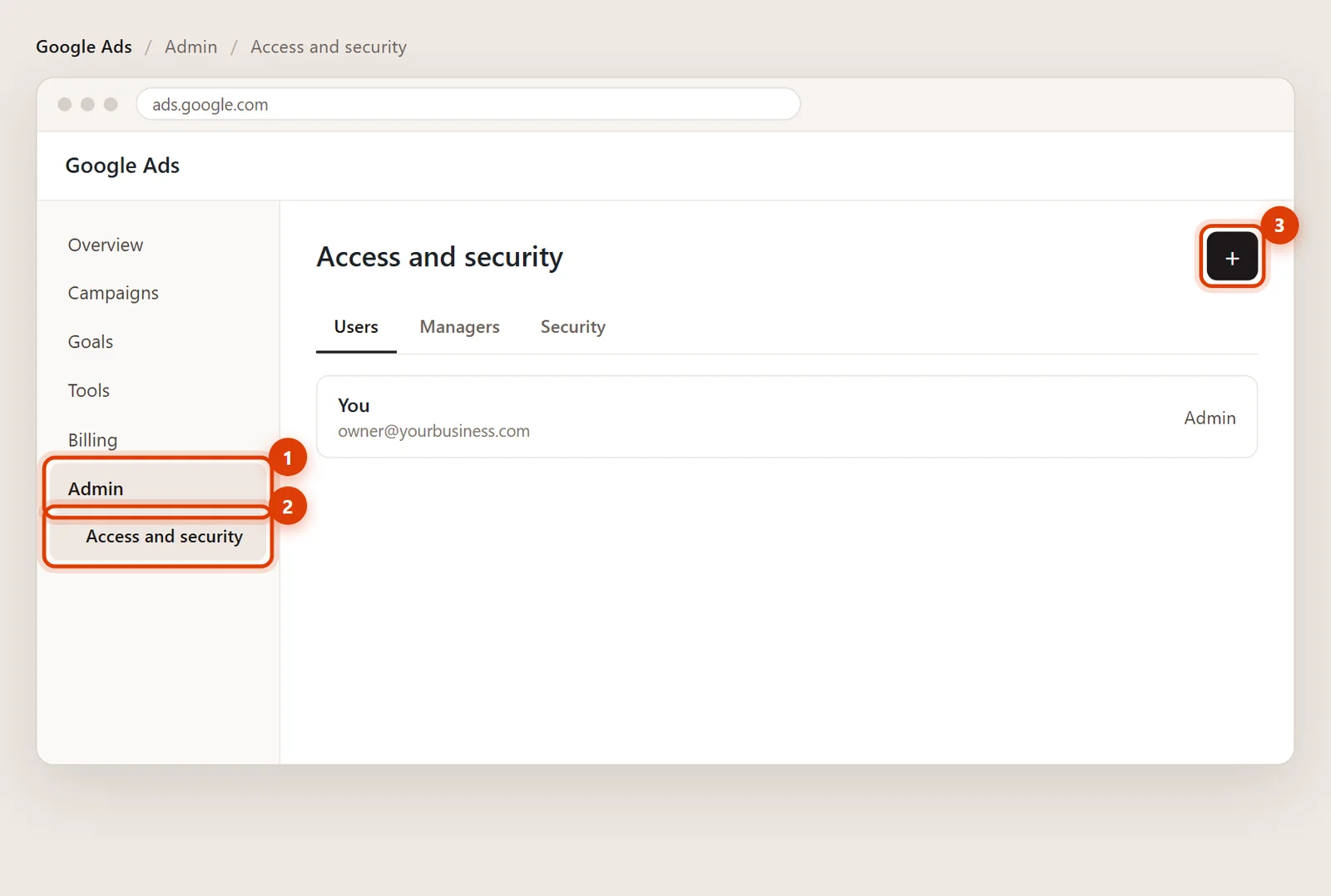
Click the plus button
Click the blue + above the list of users.
Enter my email and choose an access level
Type info@lerws.com. For the access level:
- Standard lets me run campaigns and see billing. Enough for most of my work.
- Admin adds managing users and linking Analytics, Merchant Center and my manager account. Choose it if I’m setting those up for you.
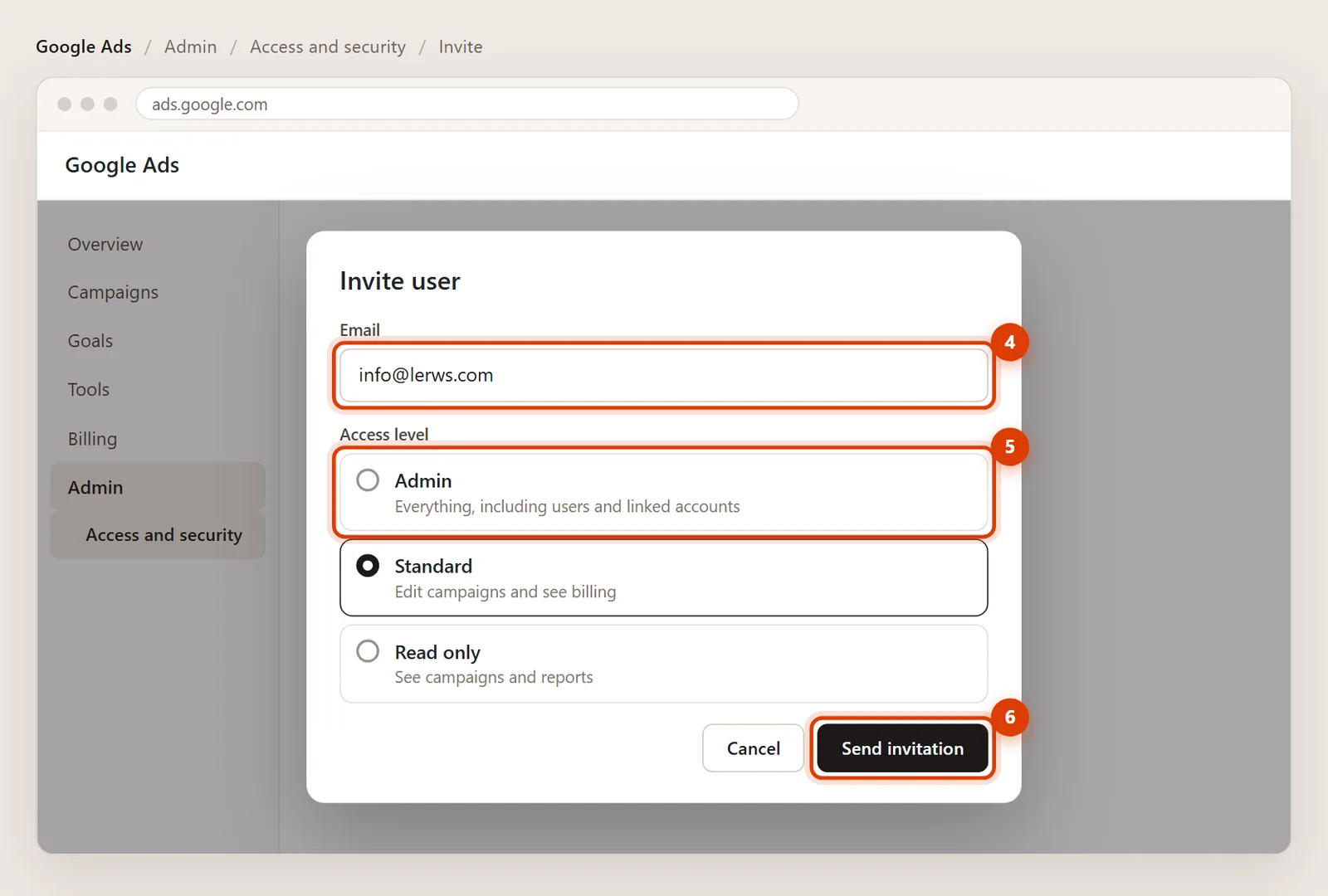
Click Send invitation
Click Send invitation. I accept it from the email, and Google lets you know once I have.
Or: accept my manager link request
If I manage your account from my Google Ads manager account (MCC), I send a link request instead of an invite. To accept it:
- Go to Admin > Access and security.
- Open the Managers tab.
- Find LER Web Services under link requests and click Accept. You can also click Accept request in the email Google sends.
Only Admins can accept link requests. Linking doesn’t give me ownership: you can unlink me from the same tab any time.
Removing my access later
In Admin > Access and security, find my email on the Users tab and click Remove, or unlink my manager account on the Managers tab.
With Standard access I can see billing but you stay in charge of it. I never add or change a card without asking you first.
Either works. The manager link is tidier when I manage several accounts; the invite is quicker if we’re just starting. I’ll tell you which one I’m sending.
Google now asks for extra verification on sensitive actions like adding users. Follow the prompt on your phone or computer, then try again.